
Agent! Gets a Magnifying Glass: the All-New Web Search
Web search in Agent! now has its own toolbar icon. Pick from six search tools, drag them into the order you want, and Agent! falls back down the list on its own when one fails. You also see which tool answered each search, how often each one works, and your recent searches with the top result. Out now in the 1.1.100 pre-release, and in the December 1 release.
Ask an AI agent to "look that up" and something happens behind a curtain. Which search engine did it use? Did that one fail, so it quietly tried another? Did it give up and open Safari? Until now you mostly had to take its word for it.
Agent! 1.1.100 pulls the curtain back. Web search now has its own button in the toolbar, a little magnifying glass 🔍. Click it and you're in charge of how Agent! searches the web. You choose the tools and the order, and you see the receipts for every search.
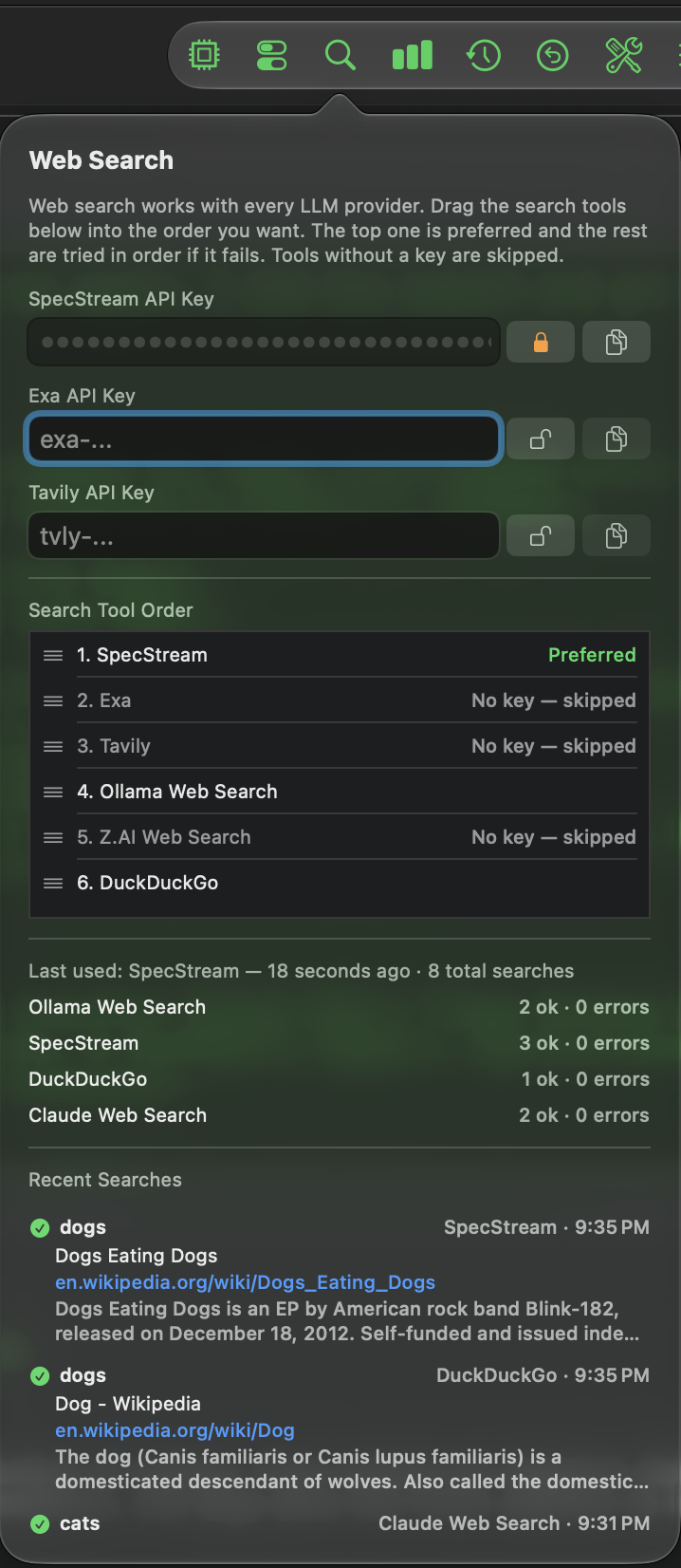
Six search tools, one list, your order
Agent! knows six ways to search the web:
- SpecStream: first in line by default, and used as soon as you paste in its key. Agent! asks for its fast tier.
- Exa
- Tavily
- Ollama Web Search
- Z.AI Web Search
- DuckDuckGo: needs no key at all, so search always works, even on a fresh install.
The SpecStream, Exa and Tavily keys now live right in the Web Search popover. They used to be tucked away in LLM Common Settings. Ollama Web Search and Z.AI Web Search use the keys you already set up for those LLM providers. Every key is kept in your Mac's Keychain.
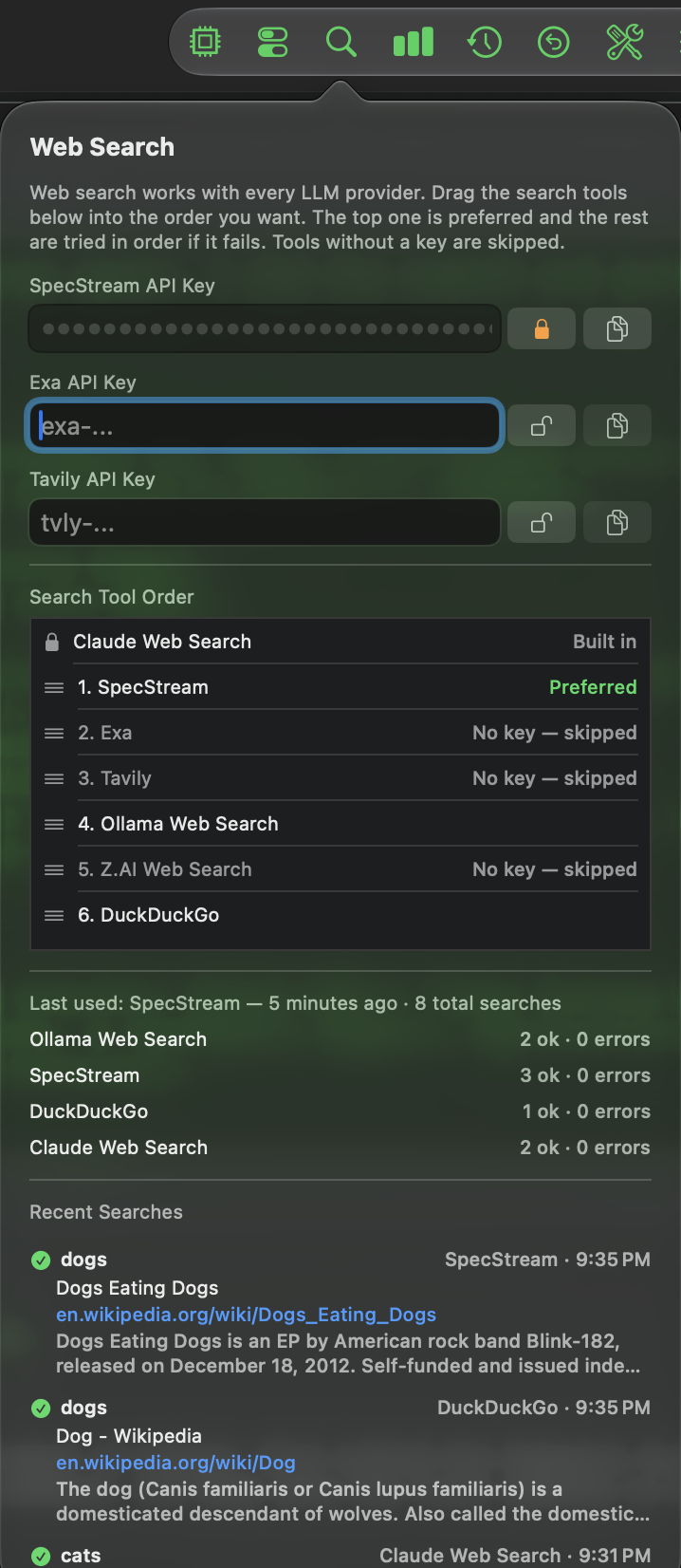
Now the good part: Search Tool Order. Grab a row by its handle and drag it up or down. The tool at the top is marked Preferred. Agent! tries it first, and if it fails, Agent! moves on to the next one, and the next, until one of them answers. Tools without a key are skipped, and the list tells you so right there with "No key — skipped". Your order is saved and stays put.
It's also your order, full stop. Before, Ollama or Z.AI search could cut in line just because it was the current LLM. Not anymore.
And it works with every LLM provider. Claude, Codex, Gemini, a local model in LM Studio: they all get the same search setup.
Claude tabs: Claude searches for itself
Claude has its own web search built into the Anthropic API, and it's very good. So when the LLM on the current tab is Claude, Agent! lets Claude use it. The popover shows a locked Claude Web Search row marked Built in above your list. Every other tab keeps following your Search Tool Order.
This fixed a real bug. Claude used to get Agent!'s own search tool as well as its native one, and sometimes picked the wrong one, or even went off and opened Safari. Now, on the Anthropic API, Claude's built-in search is the only search tool it gets.
Claude's searches don't disappear into the cloud, either. They show up in the stats, the history and the activity log, just like every other search.
No more surprise Safari windows
Ask for a plain web search and you get a web search, not a browser window popping up on your screen. Agent! now tells the model to use Safari only when you actually ask for Safari or a browser. It also stopped telling the model that search is "via Tavily", which was out of date and confusing.
The receipts: stats, errors and history
This is the part that makes you feel like you're holding the steering wheel. The popover keeps score:
- Last used: which tool answered most recently, how long ago, and how many searches you've run in total.
- Per-tool counts: ok and error numbers for each tool. If one is failing, its count turns orange and its last error appears right under it, so you know exactly what to fix: a bad key, an empty balance, a server having a bad day.
- Recent Searches: your last 50 searches, each with a green check or a red cross, the tool that ran it and the time. Successful searches show the top result with its title, a clickable link and a short snippet. Failed ones show what went wrong.
All of it is saved on your Mac, so it's still there after you restart the app.
The icon tells you how it's going
You don't even have to open the popover. The magnifying glass changes color:
- Gray: no search keys yet, so Agent! is using keyless DuckDuckGo.
- Green: you've added a SpecStream, Exa or Tavily key.
- Orange: a search tool has had errors. Time to take a look.
Hover over it and the tooltip sums things up: the last tool used, the total number of searches, how long ago the last one was, and the last error if there was one.
Every search, named in the log
When a search runs, the tab's activity log now names the tool that answered, right before the results:
🌐 Web search backend: SpecStreamSo when you read back what Agent! did on a task, there's no mystery about where the information came from.
Get it
The new Web Search is in the Agent! 1.1.100 pre-release right now, and it ships to everyone in the December 1 release. Install it, click the magnifying glass, drag your favorite search tool to the top, and go ask Agent! to look something up. This time you'll see exactly who answered.